
Different places.
The same shared screen.
Choose how your viewers reach you: a private Tailscale network, a public Cloudflare link or your local network.
Set up internet accessThree ways to connect.
Choose a connection mode on VNCme's Settings tab, under Connection Mode. The mode applies the next time you start the server.
| Mode | Who can connect | Best for |
|---|---|---|
| Tailscale (recommended) | Devices signed in to the same Tailscale network | Regular remote access between your own computers or a trusted team. Private and end-to-end encrypted. |
| Public tunnel (Cloudflare) | Anyone with the link and your viewer password | Quick sessions with people outside your network who don't use Tailscale. |
| LAN only | Devices on the same local network | Offices, classrooms and home networks. No remote access. |
Share a link with anyone.
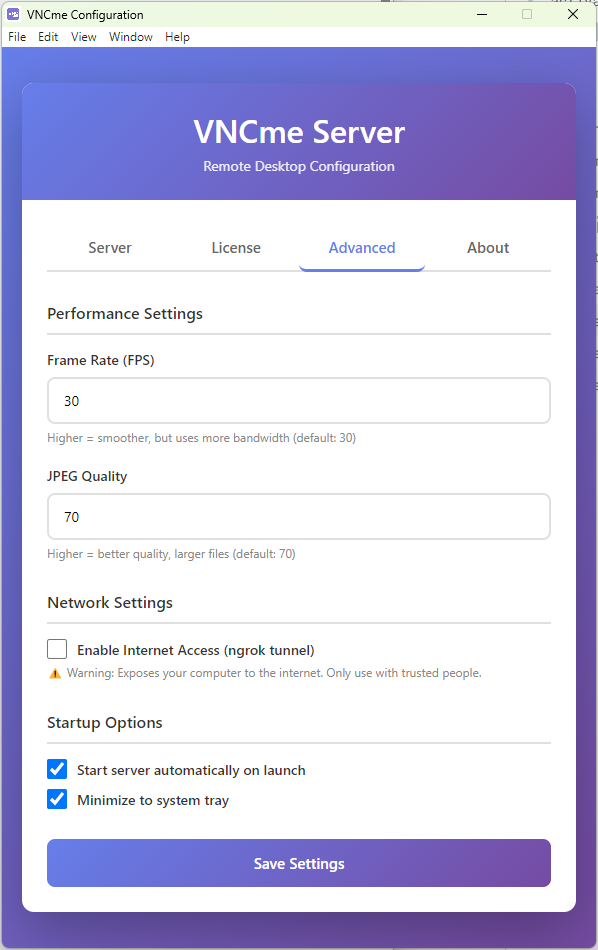
Public tunnel mode uses a Cloudflare tunnel to give your running session a public https:// address, so viewers on any network can open it in their browser. VNCme downloads the tunnel component automatically the first time you use it.
Open the Settings tab
Under Connection Mode, select Public tunnel (Cloudflare).
Set a viewer password
Enter a Viewer Password. It is strongly recommended in this mode: without one, anyone who learns the link can see your screen. Choose Save Settings.
Start the server
On the Server tab, choose Start Server. After a few seconds, the Public Tunnel Info panel shows your link, ending in
trycloudflare.com.Send the link
Choose Copy URL & Password to copy the link, then send it to the people joining. Give them your viewer password separately.
Connect in a browser
Viewers open the link and enter your viewer password. Keep VNCme running for the whole session.
Keep it on your own network.
Tailscale joins your devices into a private, encrypted network wherever they are. Only devices signed in to your Tailscale network can reach your VNCme session.
- Install Tailscale on the host computer and on each viewer's device.
- Sign every device in to the same Tailscale account or network.
- In VNCme, open Settings, select Tailscale (recommended) and choose Save Settings.
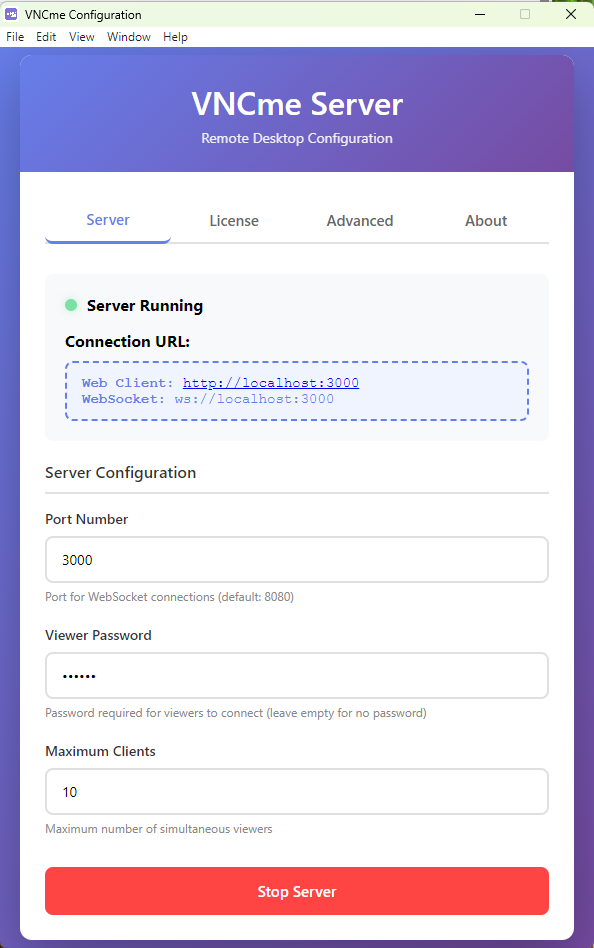
- Start the server. The Tailscale Connection Info panel shows your address and Tailscale IP.
- Viewers open that address in their browser and enter your viewer password if you set one.
http://YOUR_TAILSCALE_HOSTNAME:8080If the panel says Tailscale isn't installed or isn't signed in, finish the Tailscale setup on the host and start the server again.
The link is only part of the connection.
Session URL
Send the address shown in VNCme's connection panel. A local address such as localhost or a private network address won't reach your host from a remote viewer's network.
Viewer password
Viewers are asked for the password you set on the Settings tab before they can see your screen. Share it separately from the link where you can.
Public tunnel availability and limits are controlled by Cloudflare and may change.
A few things to check.
No public URL appears
Check that Public tunnel (Cloudflare) is selected and saved, and that the server has started. The first run downloads the tunnel component, which can take a little longer. Check the Console tab for messages, make sure the host is online, then stop and restart the server.
The link works on the host but not remotely
Check that you sent the public trycloudflare.com link or Tailscale address, not localhost or a local-network address. Copy the connection details again from the running VNCme session.
The viewer is asked for a password
That is your VNCme viewer password from the Settings tab. Viewers have a limited number of attempts before they need to reload the page.
The connection drops
Check that the host is still online and the VNCme server is running. Public tunnel links change each time the server starts or the link is regenerated, so send viewers the newly displayed address.
Tailscale viewers can't connect
Make sure both devices are signed in to the same Tailscale network and show as connected in the Tailscale app. Check the host's firewall allows the VNCme port.
The page opens but the screen doesn't load
Test the session in a browser on the host first, at http://localhost:8080. Check the host firewall permits the configured port. See the browser connection guide.
You can stay on your local network.
If all your viewers are on the same local network as the host, you don't need internet access. Select LAN only on the Settings tab, start the server and share the address shown in the LAN Connection Info panel.
http://YOUR_HOST_LOCAL_IP:8080If you changed the port, use the one shown in your running application. Viewers still need network access to the host and any viewer password you set.
See local connection instructionsNeed help with your connection?
Tell us your operating system, which connection mode you're using and the exact error message.
Contact support